
Important Note:
- Use Must Remember Your Email and Password Both.
- You Must Use Chrome To Change Email That I Had Written (I Have Already Tried From Playstore 1000s Of Times But Definitely Need Chrome to Use)
- You Must Have To Uninstall App That Much To Change Your Email Address For Payment.
- You Can use Unlimited Mail Id To use Our App.
Uninstall App From Phone
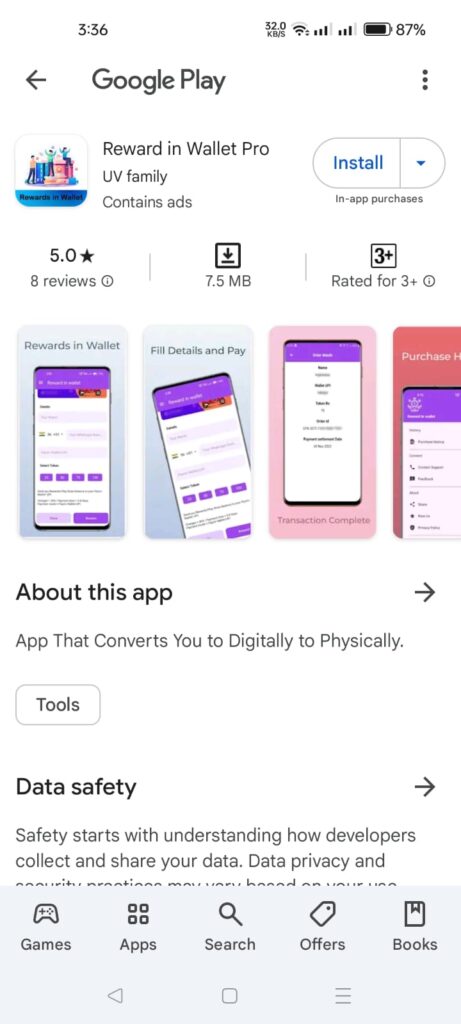
- Change your Play Store email for payment purposes, which you wish to choose and pay for
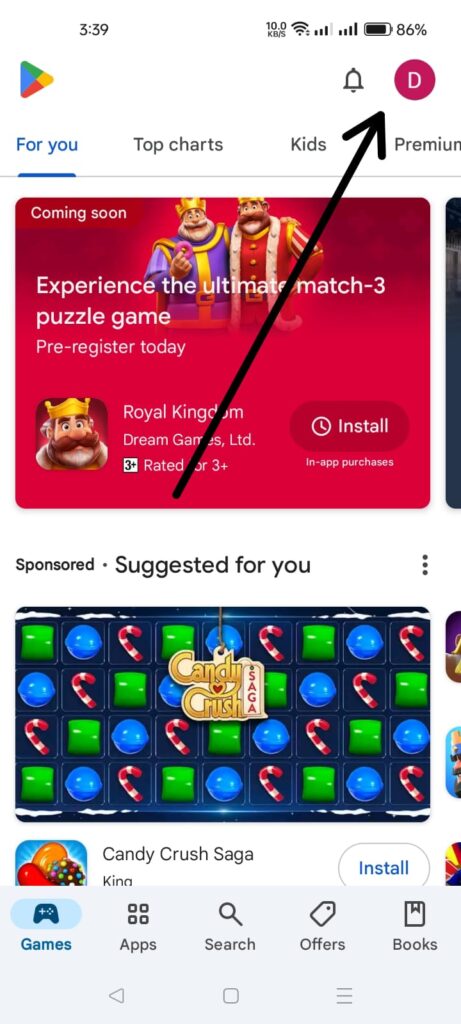
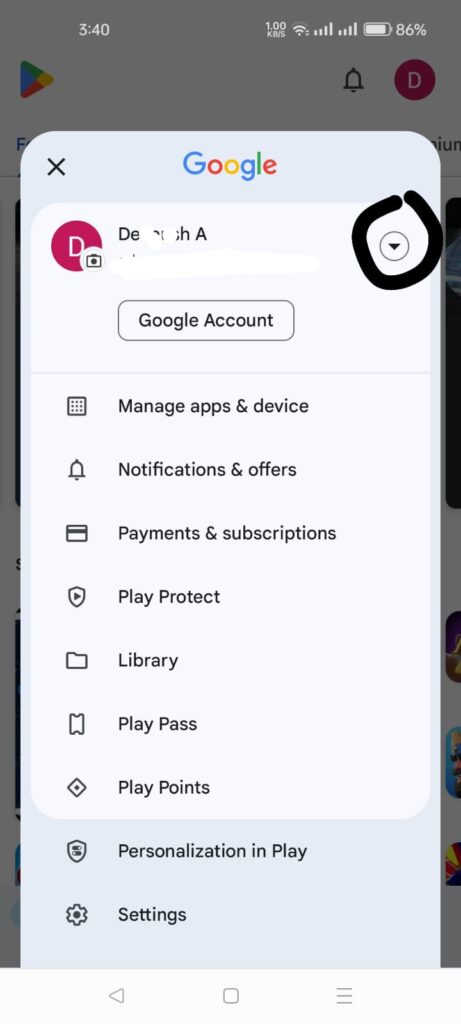
- After selecting your payment email on the Play Store.
- Open Google Crome.
- Search “Playstore” on Crome or Open Link :- https://play.google.com/store/apps/details?id=com.rewardinwallet
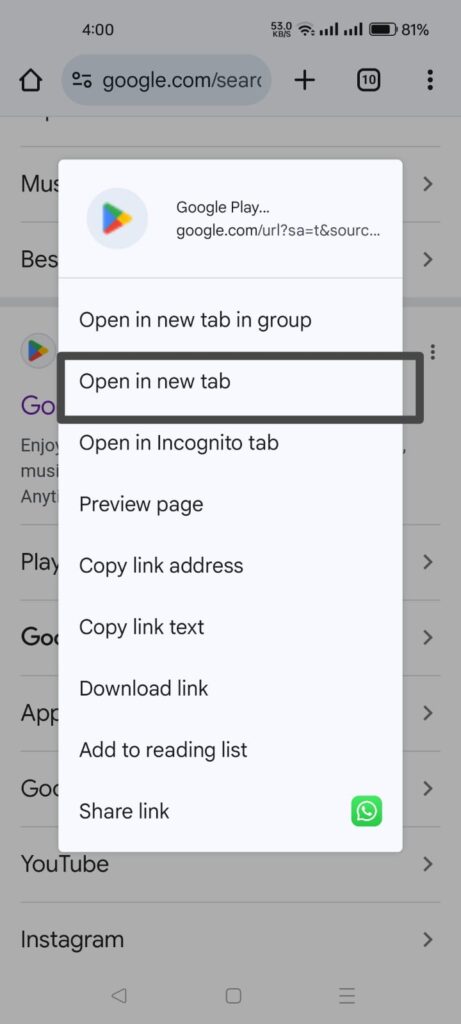
- Open Playstore in Crome
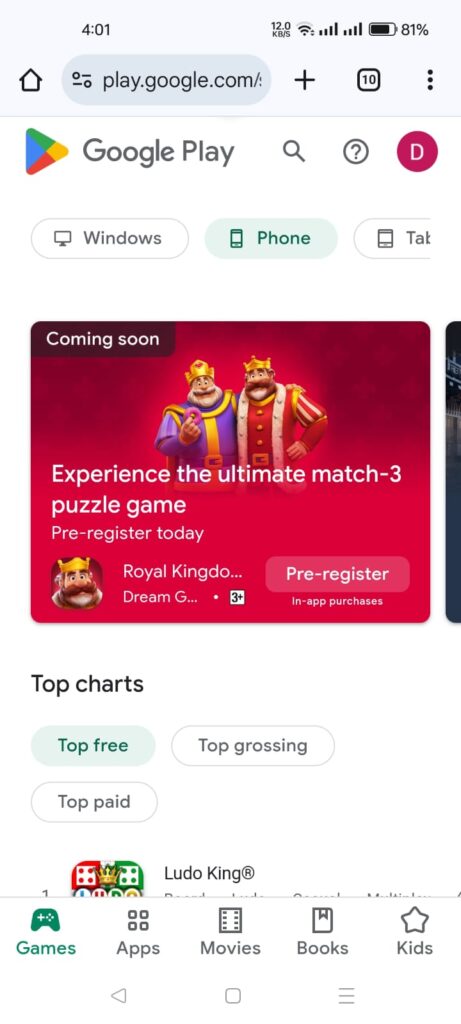
- Choose the mail id you wish to use in our app.
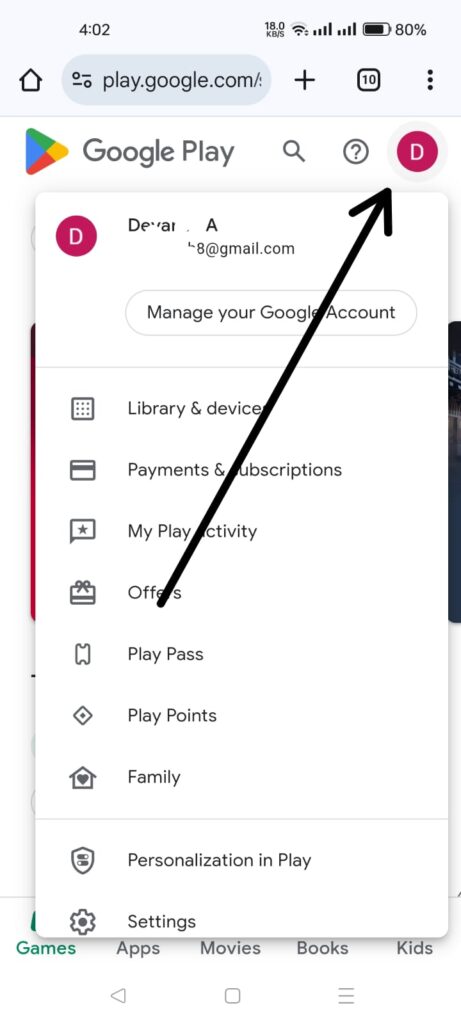
- After selecting a mail id, search on Playstore.“com.rewardinwallet”
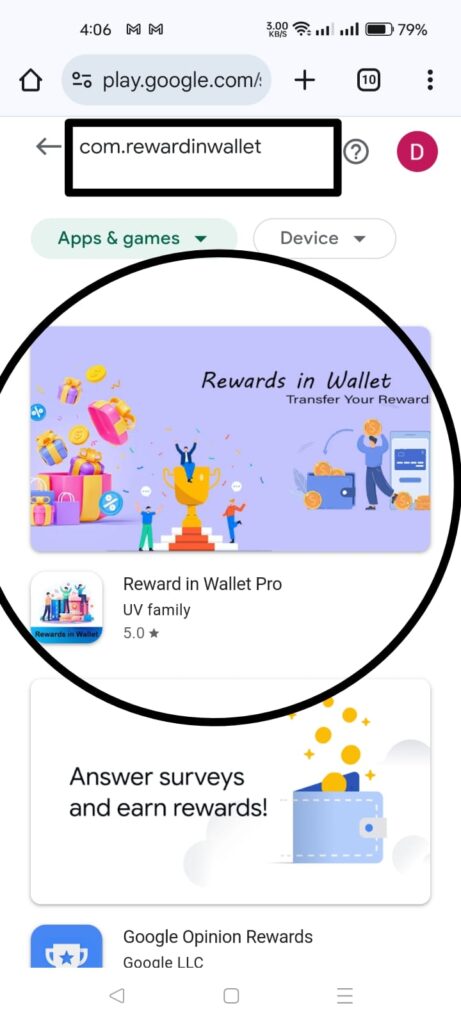
- Just long press on our app and click on “Open in New Tab.”
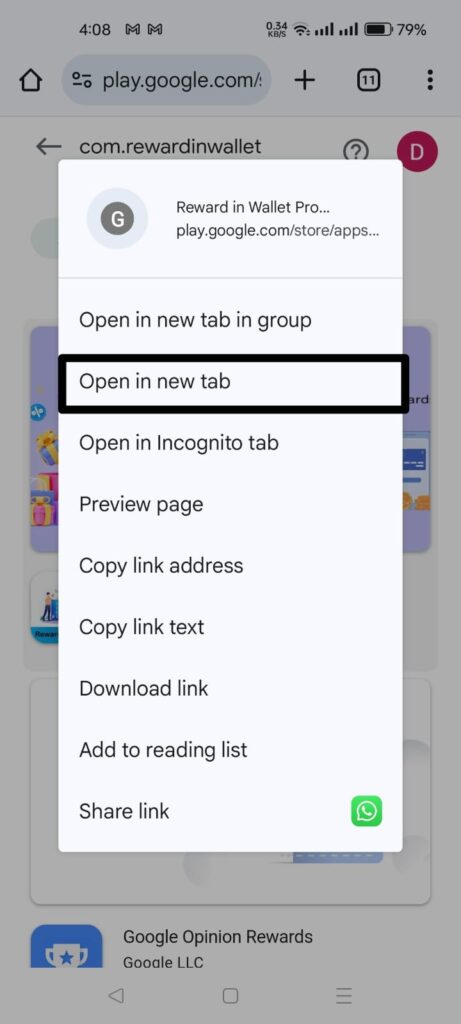
- Make sure that the email address we want to use is correct, and then click on Install on More Devices.
- Then click your device. and Click the Install Button.
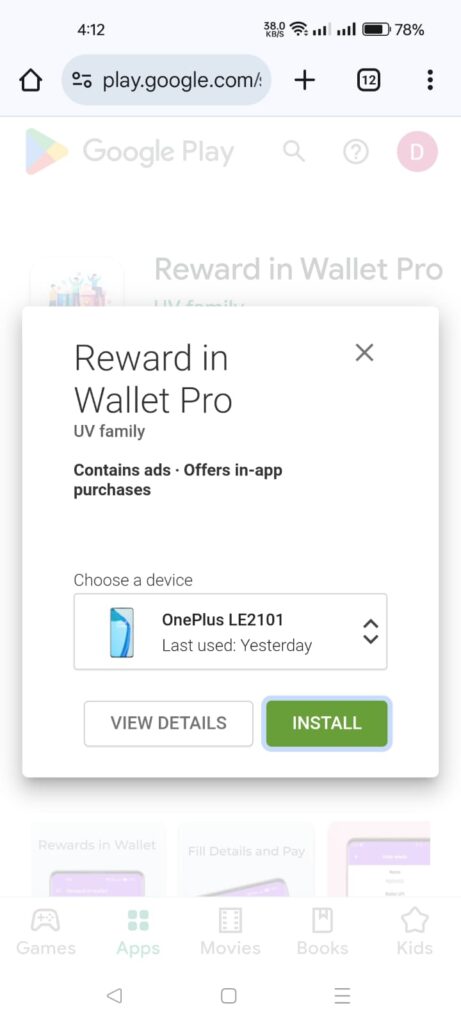
- Maybe Crome will ask for your email password. Just enter your password.
- And then it will automatically forward you to the Playstore, and you only need to click on Install.
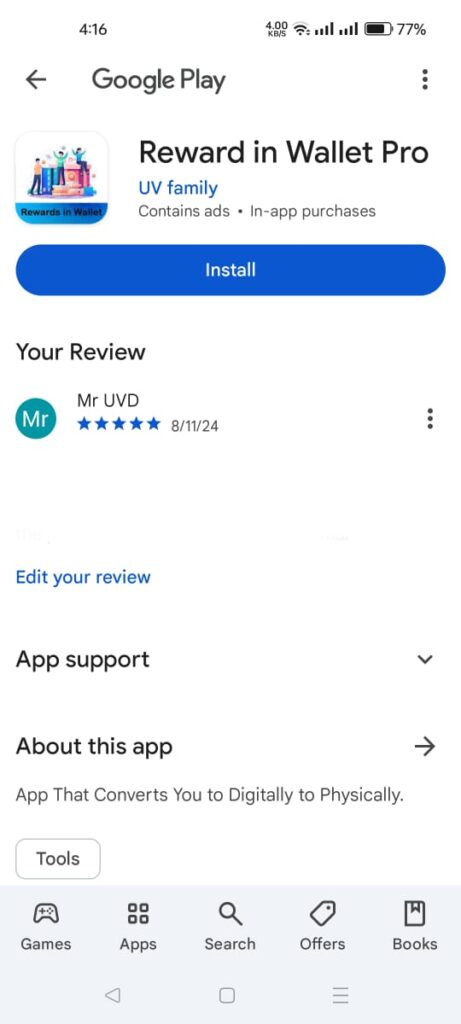
- After installation. Open the app and make your payment. Your problem is 101% solved.
Documentaion :-
- Uninstall App From Phone
- Change your Play Store email for payment purposes, which you wish to choose and pay for
- After selecting your payment email on the Play Store.
- Open Google Crome.
- Search “Playstore” on Crome or Open Link :- https://play.google.com/store/apps/details?id=com.rewardinwallet .
- Open Playstore in Crome.
- Choose the mail id you wish to use in our app.
- After selecting a mail id, search on Playstore.“com.rewardinwallet”
- Just long press on our app and click on “Open in New Tab.”
- Make sure that the email address we want to use is correct, and then click on Install on More Devices.
- Then click your device. and Click the Install Button.
- Maybe Crome will ask for your email password. Just enter your password.
- And then it will automatically forward you to the Playstore, and you only need to click on Install.
- After installation. Open the app and make your payment. Your problem is 101% solved.
दस्तावेजः –
- फोन से ऐप हटाएं
- भुगतान उद्देश्यों के लिए अपने प्ले स्टोर ईमेल को बदलें, जिसे आप चुनना चाहते हैं और भुगतान करना चाहते हैं
- प्ले स्टोर पर अपना भुगतान ईमेल चुनने के बाद।
- गूगल क्रोम खोलें।
- क्रोम या ओपन लिंक पर “प्लेस्टोर” खोजेंः-https://play.google.com/store/apps/details?id=com.rewardinwallet।
- क्रोम में प्लेस्टोर खोलें।
- आप हमारे ऐप में जिस मेल आईडी का उपयोग करना चाहते हैं, उसे चुनें।
- मेल आईडी चुनने के बाद, प्लेस्टोर पर खोजें।”com.rewardinwallet”
- बस हमारे ऐप पर लंबे समय तक दबाएँ और “ओपन इन न्यू टैब” पर क्लिक करें।
- सुनिश्चित करें कि हम जिस ईमेल पते का उपयोग करना चाहते हैं वह सही है, और फिर इंस्टॉल ऑन मोर डिवाइसेस पर क्लिक करें।
- इसके बाद अपने डिवाइस पर क्लिक करें। और इंस्टॉल बटन पर क्लिक करें।
- हो सकता है कि क्रोम आपका ईमेल पासवर्ड मांगे। बस अपना पासवर्ड दर्ज करें।
- और फिर यह स्वचालित रूप से आपको प्लेस्टोर पर भेज देगा, और आपको केवल इंस्टॉल पर क्लिक करने की आवश्यकता होगी।
- स्थापना के बाद। ऐप खोलें और अपना भुगतान करें। आपकी समस्या 101% हल हो गई है।